

The GenPage + Instantly integration lets you import leads from Instantly, create dynamic landing pages tailored to each prospect, and export those pages back into Instantly as custom variables you can use inside your email sequences.
By combining Instantly’s cold email infrastructure with GenPage’s AI-powered personalization, you can dramatically increase reply rates and conversion rates from outbound campaigns.
Follow the steps below to connect Instantly to GenPage.
1. Generate an Instantly API Key
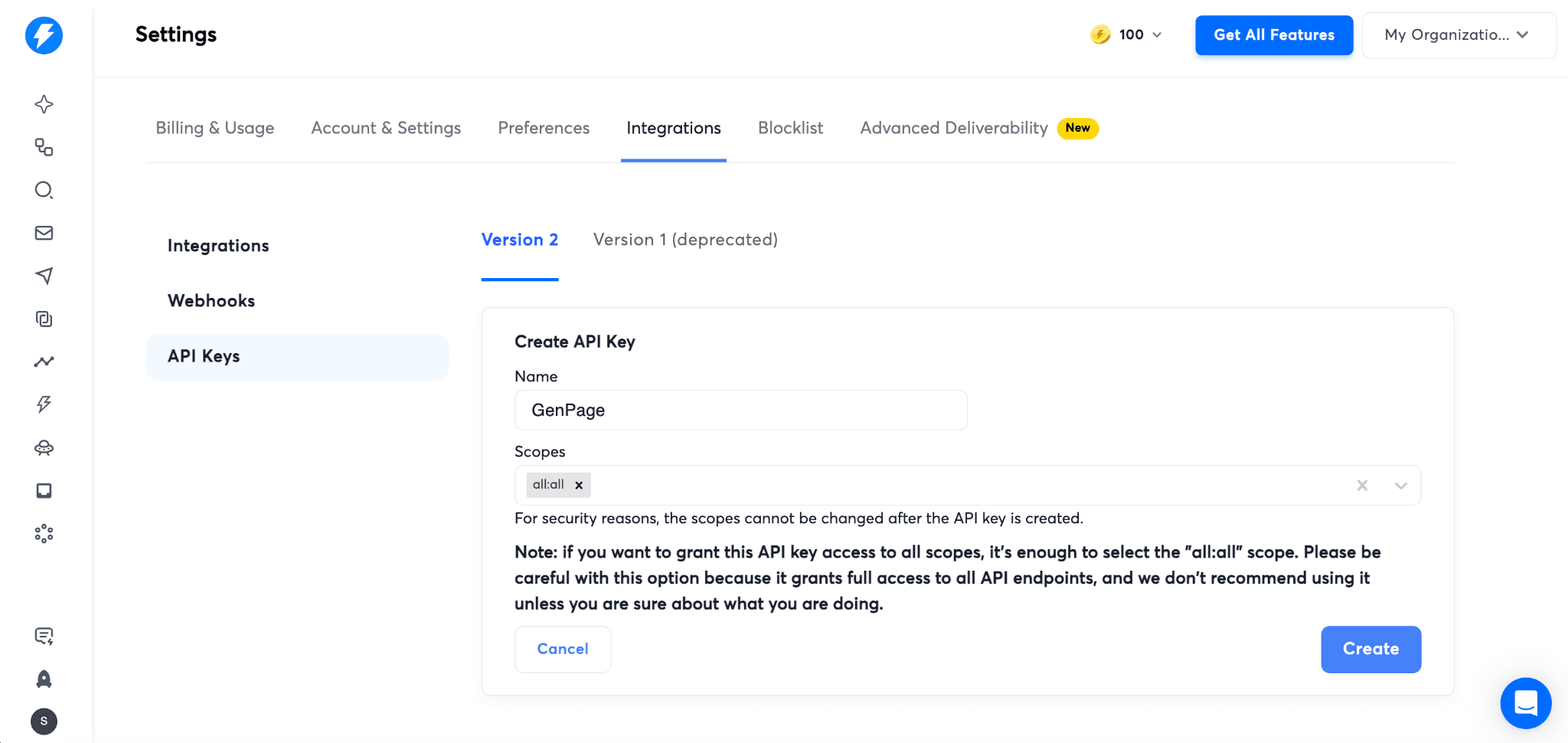
To begin, you need to create an API key inside Instantly so GenPage can securely access your campaigns.
Go to Instantly → Settings → Integrations → API Keys.
Click Generate API Key.
Select the scope all:all to allow GenPage to access your campaigns and leads.
Copy the API key that is generated.
2. Connect Instantly to GenPage
Once your API key is created, connect Instantly to your GenPage workspace.
Go to GenPage → Settings → Integrations.
Click Instantly.
Select Add API Key.
Give the key a recognizable name.
Paste your Instantly API Key into the input field.
Save the integration.
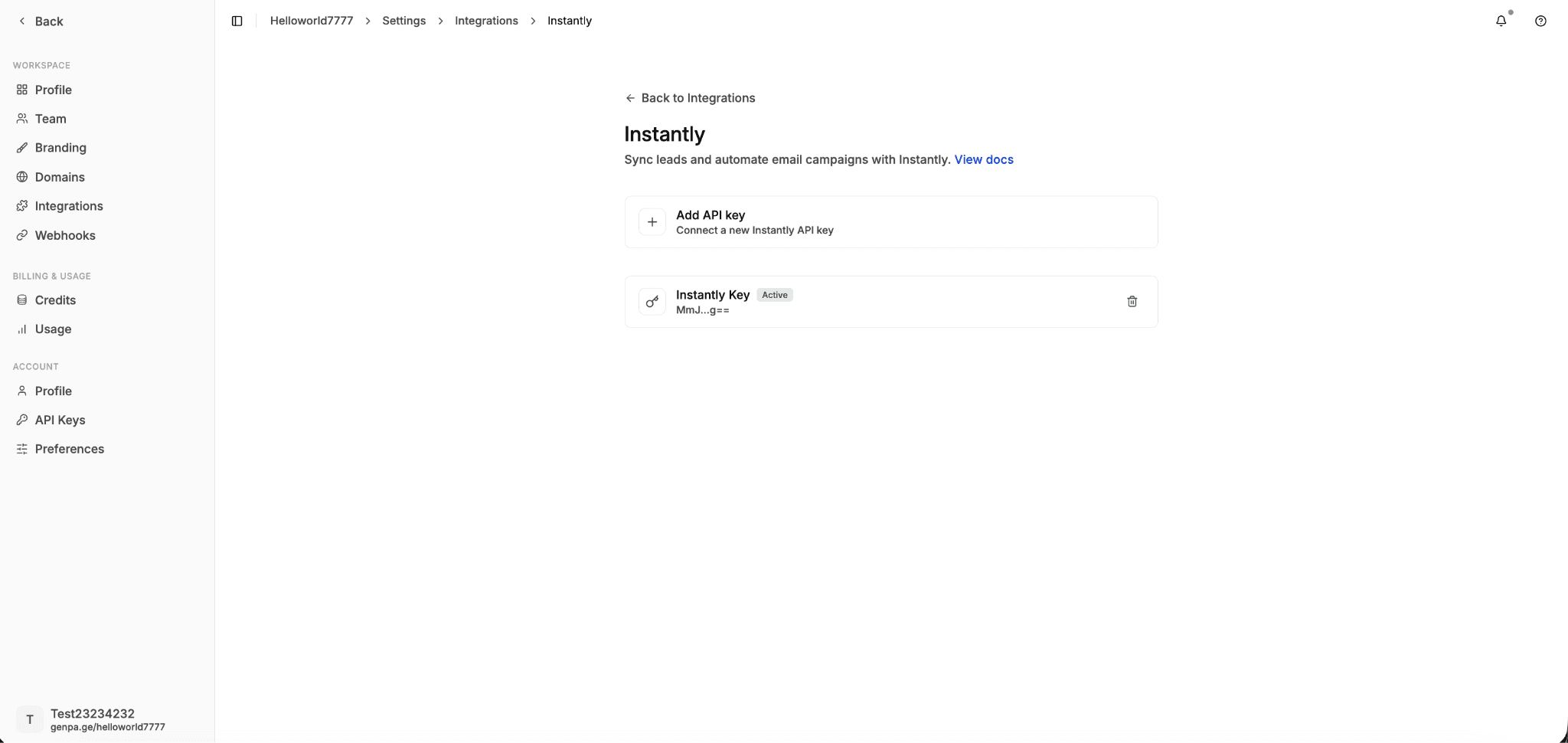
Your Instantly account is now connected to GenPage and ready to sync leads and campaigns.
3. Import Instantly Leads to Generate Personalized Landing Pages
After connecting the integration, you can import leads directly from your Instantly campaigns into GenPage and automatically generate personalized landing pages for each prospect.
Navigate to Audiences in GenPage.
Click Import.
Select Import Instantly.
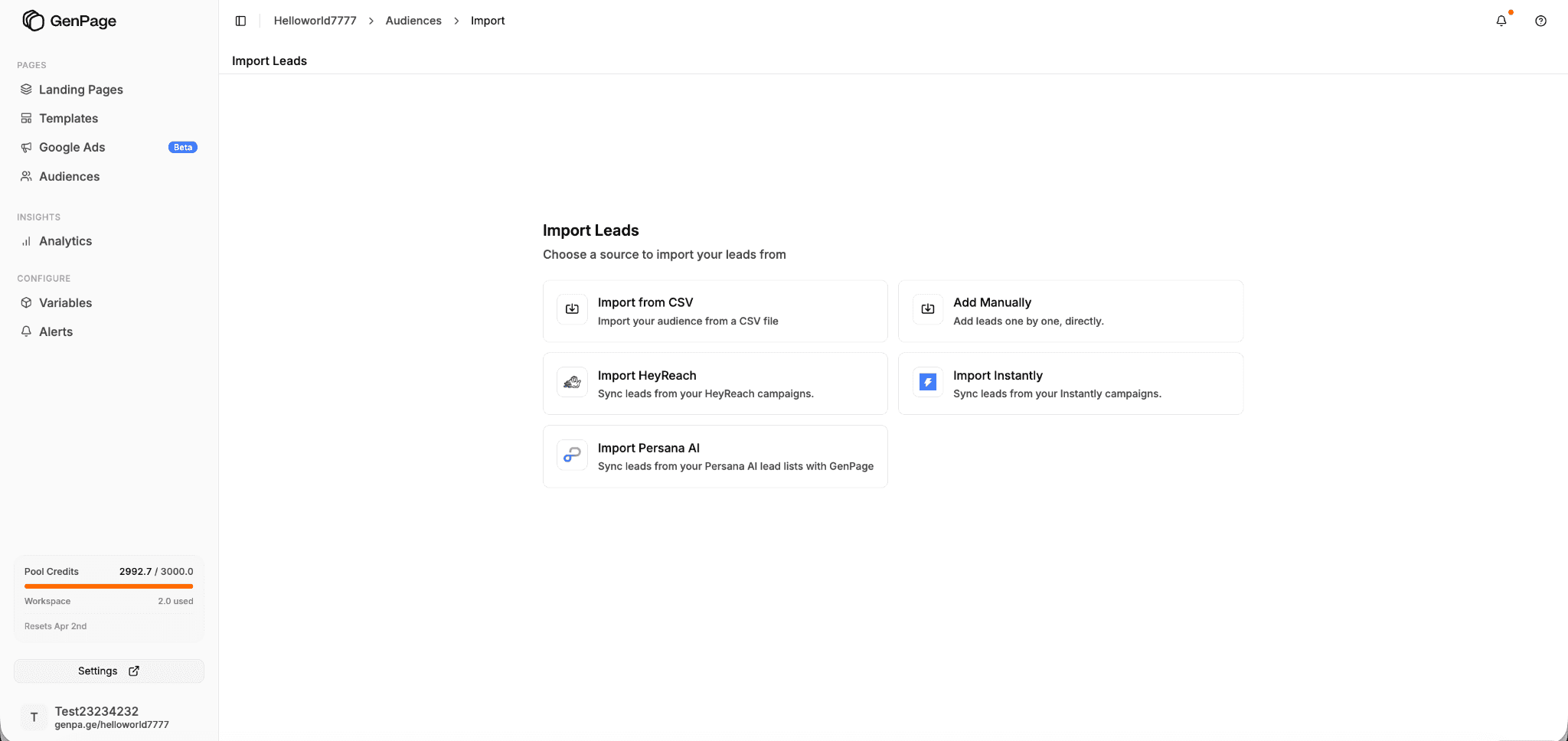
Choose the Instantly campaign you want to import leads from.
Then go through the standard GenPage import flow to generate personalized landing pages for each lead.
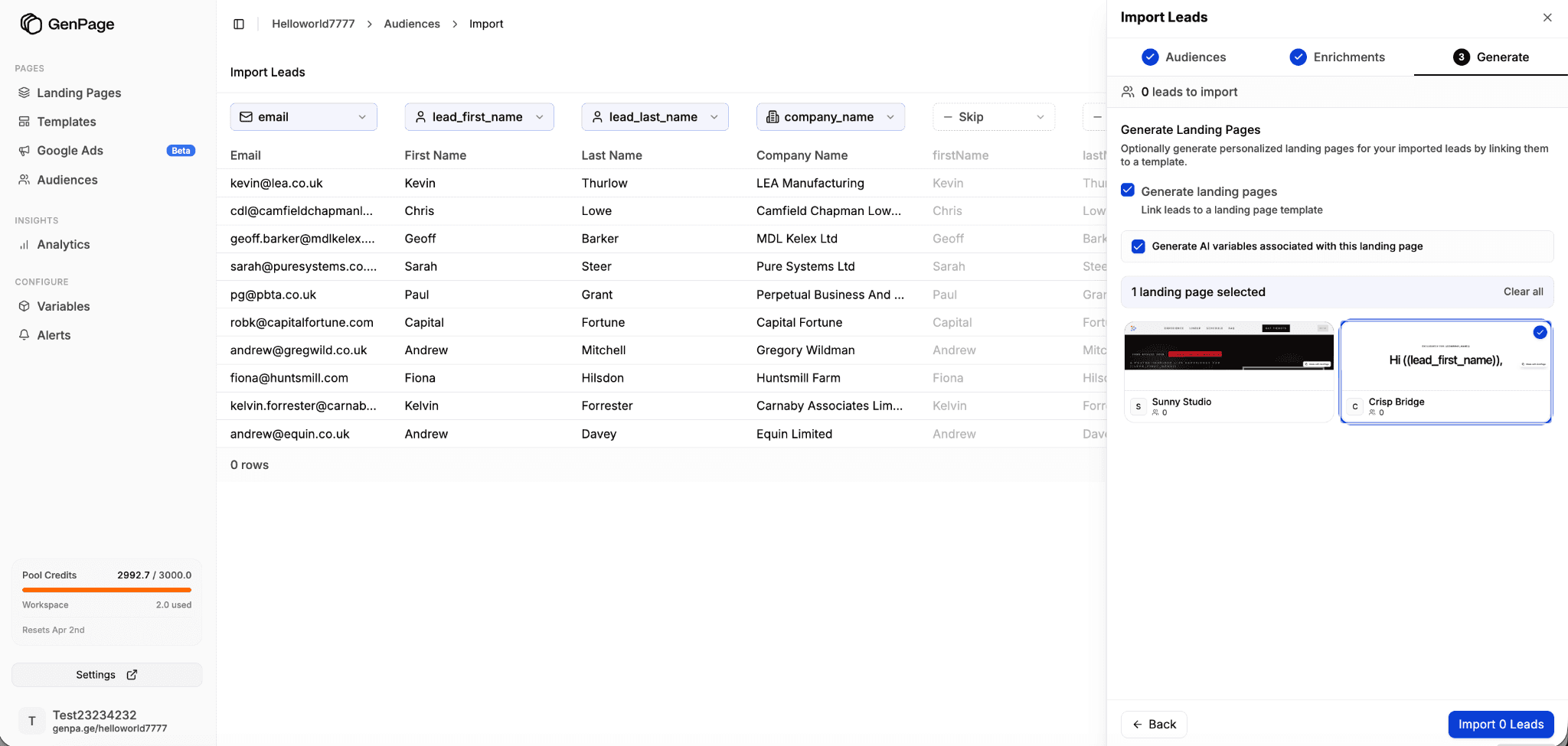
GenPage will automatically create a unique landing page for every contact, using the data associated with each lead to personalize messaging, content, and context.
These pages can then be used inside your cold email campaigns to dramatically improve engagement and conversions.
4. Export Personalized Landing Pages Back to Instantly
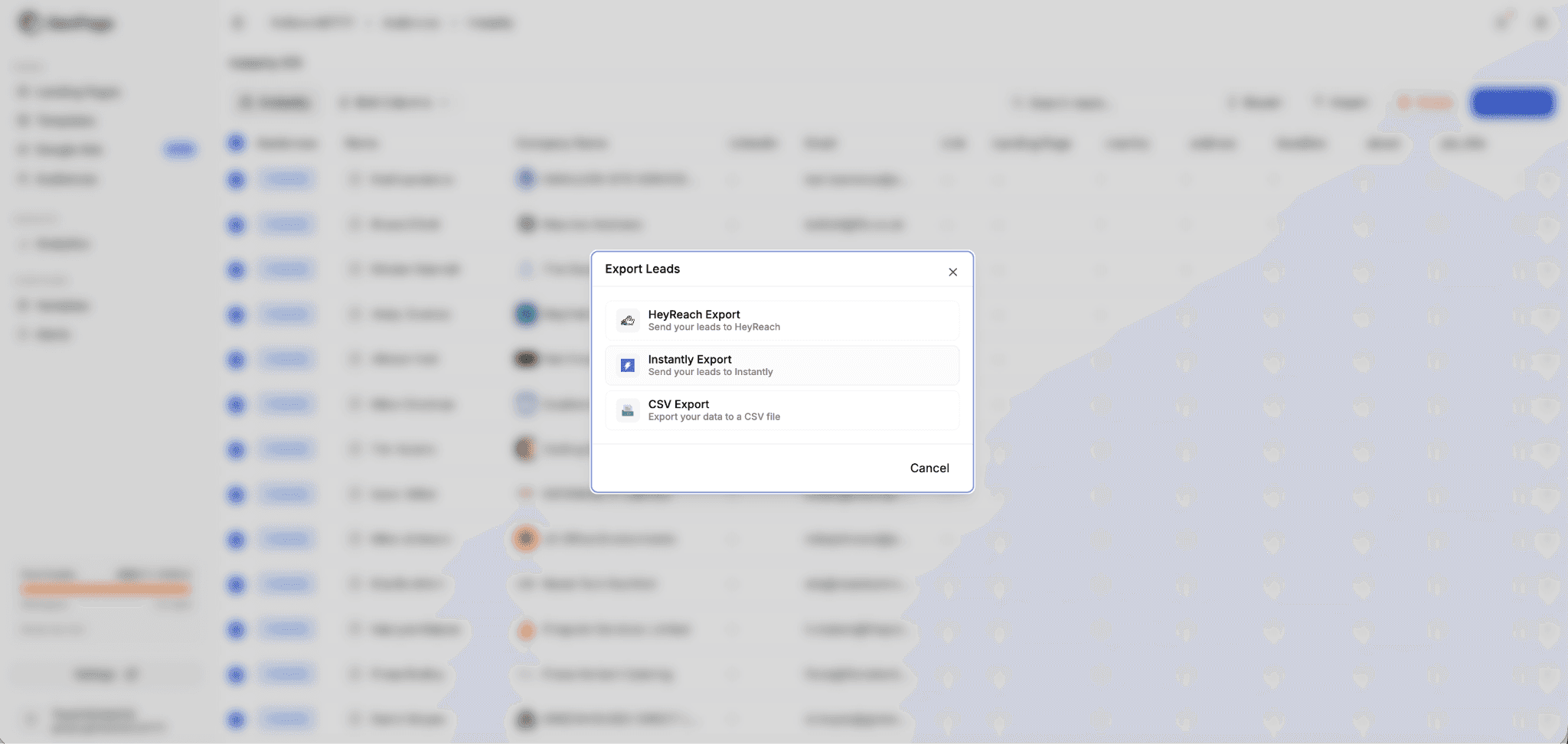
Once your personalized pages are generated, you can export them back to Instantly so they can be used inside your outreach sequences.
Go to Audiences in GenPage.
Select the leads you want to export.
Click Export.
In the export window, select Instantly Export.
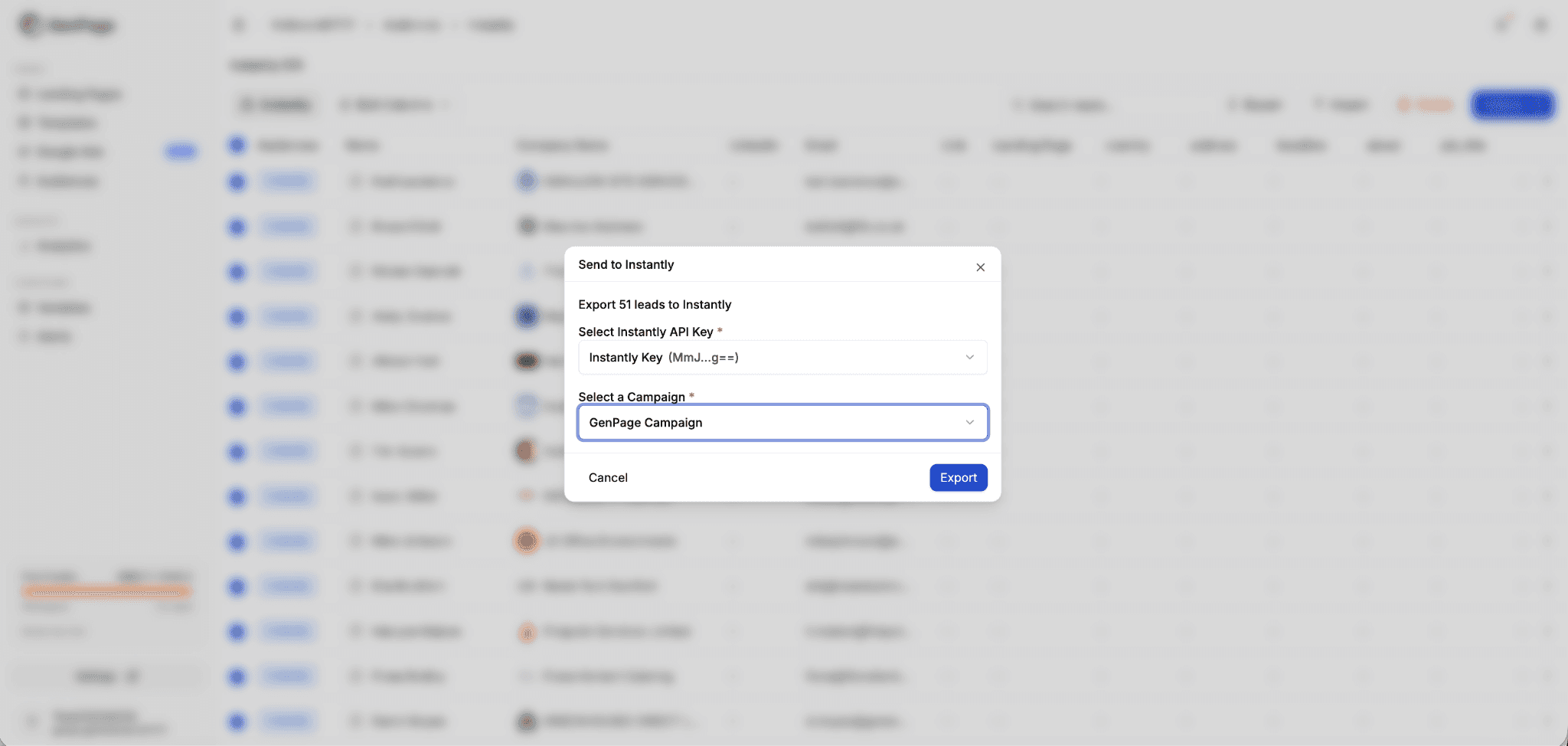
Choose the Instantly campaign where you want to send the leads.
Click Export.
5. Use Personalized Landing Page Variables in Your Cold Emails
When exporting leads to Instantly, GenPage automatically creates custom variables for all lead properties stored in GenPage.
This includes:
Standard lead attributes (name, company, etc.)
Any custom variables added in GenPage
The personalized landing page URL
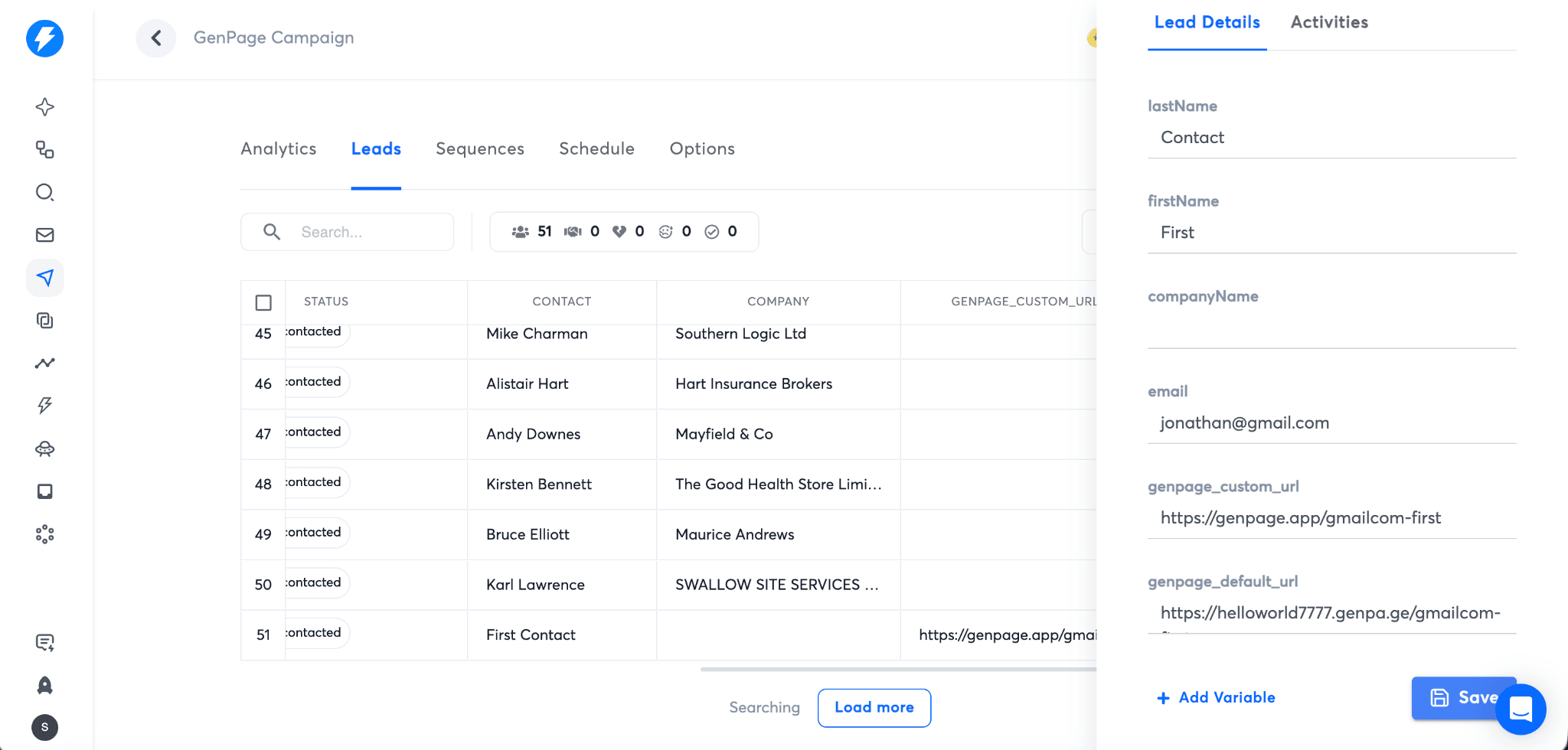
These variables can then be inserted directly into your Instantly email campaigns.
For example, you can include a personalized landing page link inside your cold email that directs each prospect to a page built specifically for them:

This approach significantly increases click-through rates and helps turn cold outreach into highly personalized sales experiences.
Why Use Personalized Landing Pages in Cold Email?
Traditional cold emails send every prospect to the same generic website. Personalized landing pages allow you to tailor the message to each lead’s company, role, or industry.
Benefits include:
Higher cold email reply rates
Increased link click-through rates
Stronger personalization at scale
More conversions from outbound campaigns
GenPage makes it possible to generate thousands of personalized landing pages automatically, while Instantly handles the sending infrastructure.
Need more help?
For support or troubleshooting, contact us at: team@genpage.ai