

Before you start: Connect your domain
Before embedding forms, make sure your domain is connected to GenPage - either via the GenPage SDK or by adding a subdomain.
→ See the domain connection guide
Step 1: Create a form in HubSpot
If you already have a form you want to use, skip to Step 2.
In HubSpot, go to Marketing → Forms
Click Create form in the top right
Build your form - add fields, set up notifications, and configure any thank-you actions
Click Publish when your form is ready
Step 2: Copy the HubSpot embed code
Once your form is published, HubSpot gives you an embed snippet to place on your page.
Select "Get embed code" and copy the full embed code snippet - it will look something like this:
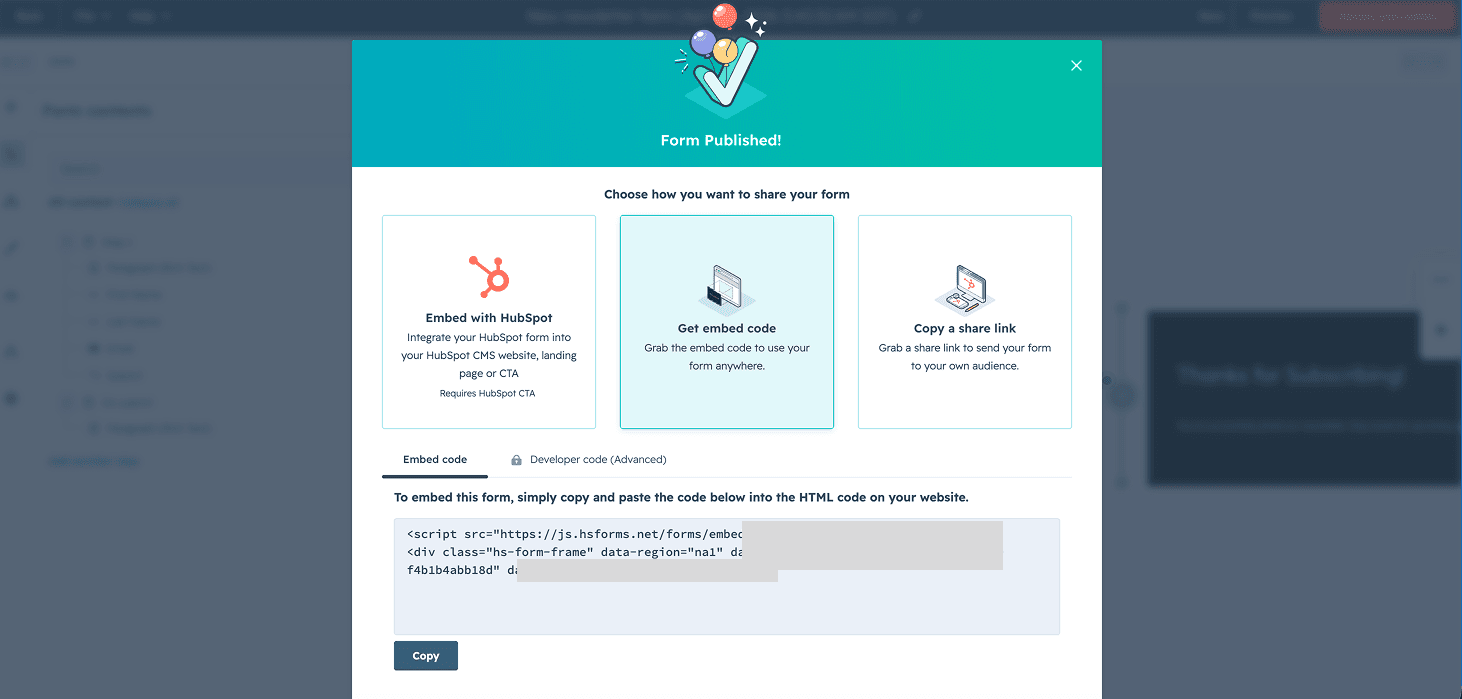
If you already have a form you'd like to embed in GenPage, simply click Edit → Review & Update and hit publish to re-access the embed code above.
Step 3: Add the form to your GenPage
Add an embed code block
Open your landing page template in GenPage
In the editor, click Insert
Select Custom → Embed Code from the block menu
Double Click the embed field and paste your HubSpot embed code into the code field

Your form will now render on the page. Publish your page and preview it to confirm it loads correctly before moving on.
Step 4: Add HubSpot conversion tracking
Embedding the form gets it on the page, but to track visits, submissions, and attribution in HubSpot, you also need to add the HubSpot tracking script to your page settings.
Get your HubSpot tracking code
In HubSpot, go to Settings → Tracking & Analytics → Tracking Code
Copy the tracking script - it will look something like this:
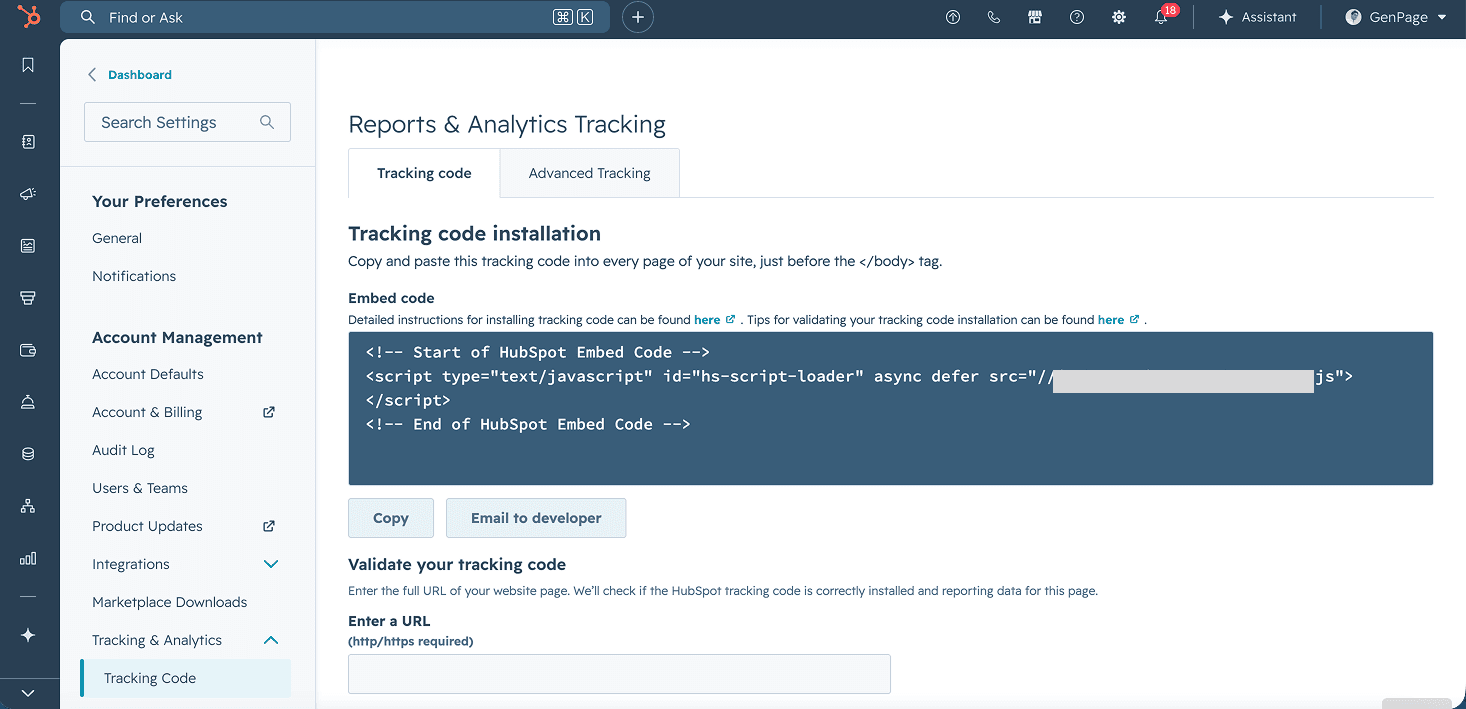
Your portal ID is embedded in the script URL (XXXXXXXX).
Add the tracking script to GenPage
In GenPage, go to the landing page where your form lives
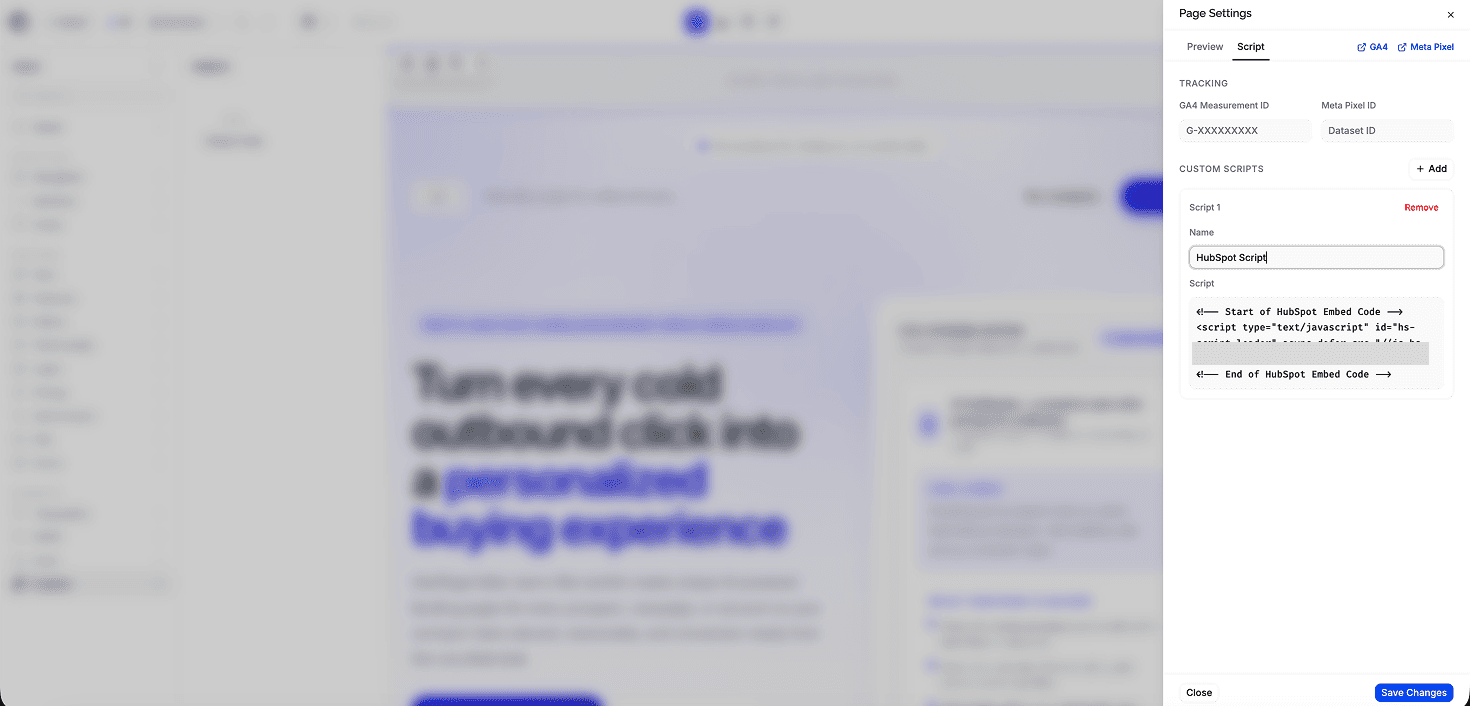
Click the three dots in the top-right navigation bar, then Page Settings → Scripts
Add the HubSpot tracking script as a new entry
Save your page settings and republish the page
You're all set
Once both the form embed and the tracking script are live, HubSpot will:
Record every form submission as a conversion
Track page visits and attribute them to the right source
Create or update contact records automatically on submission
To verify it's working: Submit a test entry on your form, then check Marketing → Forms in HubSpot to confirm the submission came through. You can also check Reports → Analytics Tools → Traffic Analytics to see if your GenPage URL is appearing.
Need more help?
For support or troubleshooting, contact us at: team@genpage.ai