

What is the GenPage MCP?
The GenPage MCP server lets an AI assistant work in your GenPage workspace for you. Once connected, you can ask Claude, ChatGPT, Cursor or any other MCP client to set up campaigns, design landing pages with GenPage's AI builder, import leads, generate a personalized page for every lead, and report on how those pages perform.
This guide covers how to connect, everything the assistant can do, what costs credits, and what still needs to be done in the GenPage dashboard.

Before you start
You need a paid plan. Free workspaces don't have MCP or API access, and every request returns an upgrade message.
One connection works with one workspace. To work in another workspace, connect again for it.
The assistant acts as you. It can do whatever your role in the workspace allows, and nothing more.
How to connect
Option 1: Claude web, ChatGPT, or any client that supports OAuth
In your AI assistant, add a new connector with this URL:
https://mcp.genpage.ai/mcpSign in to GenPage when prompted.
Pick the workspace you want the assistant to work in, and approve.
That's it. There's nothing to copy or paste.


Option 2: Claude Desktop, Claude Code, Cursor, and other clients using an API key
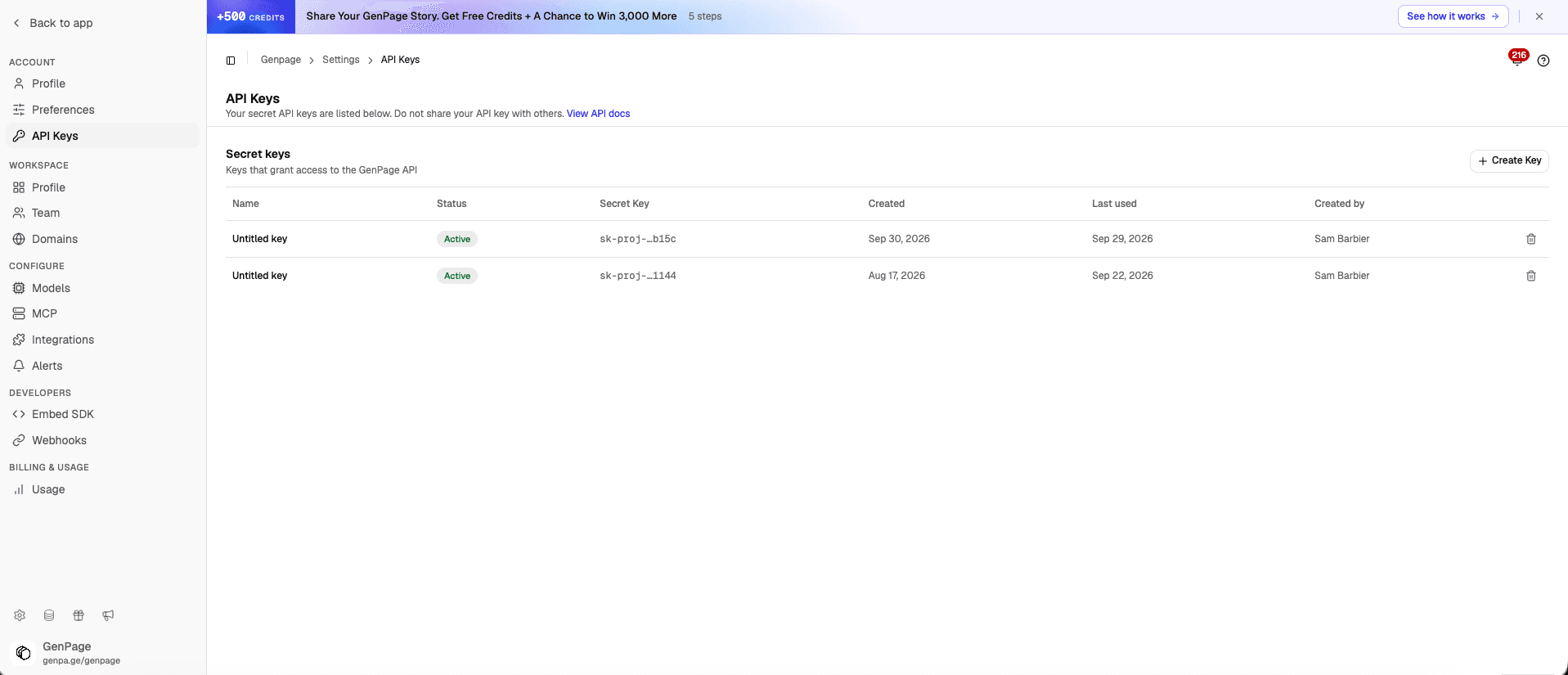
In GenPage, go to Settings → Account → API Keys.
Create a new key. It starts with
sk-proj-.Add the key to your client's MCP configuration.
The key works in the workspace it was created in.
Check your connection
Ask your assistant "Which GenPage workspace am I connected to?" It will use genpage_whoami to confirm the account and workspace.
What you can do
Account and workspace
genpage_whoamishows which account and workspace the connection is using.list_workspaceslists the workspaces the connection can use.
Campaigns
In GenPage, a campaign is a landing page, together with its design, branding and leads.
list_campaignslists your campaigns and shows how many pages each design has.create_campaigncreates a new campaign. You can optionally name it from a short brief and give it a branding. New campaigns start without a design (see "Designing a page with the AI builder" below).list_brandingslists the brand identities (logo, colors, fonts) a campaign can use.list_templateslists your workspace's templates and GenPage's premade designs.apply_template_to_campaigngives a campaign a template's design, saved as a draft. It's free and instant, but it replaces the campaign's current design.get_campaign_analyticsshows reach and engagement for each campaign: the share of pages visited, the share of visitors who clicked, and time on page.list_variableslists the fields your pages can use, such asfirst_name,company_name, and any custom fields you've added.
Try asking: "Create a campaign for fintech CTOs using our main branding and the SaaS demo template."
Designing a page with the AI builder
generate_page_designasks GenPage's AI builder to build or change a campaign's page from a written brief. By default it edits the current design, but it can also start from a blank page. This uses credits.wait_for_designwaits for the build to finish.get_page_designreads the page's HTML (and CSS if you ask for it), so the assistant can check the copy, confirm a CTA, or review what the builder produced.publish_page_designputs the design live. Until it's published, every lead link shows a "not live yet" screen.unpublish_page_designtakes the pages offline. The design is kept as a draft.
The builder uses your brand exactly as it does in the dashboard: your logo, colors and fonts. On plans with brand assets, it also uses your images, videos and knowledge documents.
Try asking: "Design a page for fintech CTOs with a hero, three benefits and a demo CTA." Then follow up with "Make the headline shorter."
Landing pages with several pages
A design can be a small website: a main page plus extra pages like Pricing or FAQ, each at its own URL and linking to each other. Every lead's link opens the main page.
list_design_pageslists the pages in a campaign's design, with each page's URL and whether it has content and is live.add_design_pageadds a new page (for example, "Pricing" at/pricing). It starts empty and uses the site's shared header and footer.
To work on one specific page, the assistant passes that page's ID to get_page_design, generate_page_design, publish_page_design or unpublish_page_design. Without an ID, these tools act on the main page. The one exception is publish_page_design, which publishes every page when no ID is given.
Try asking: "Add a Pricing page to my fintech campaign and link it from the main page's header."
Leads and audiences
import_leadsadds leads to your workspace without generating pages, which is useful for a CSV or a list you want to review first. Duplicates are matched by email.find_leadssearches leads by name, email, company, campaign or audience, or by what they did on their page: viewed it, clicked, scrolled to the end, or submitted a form.get_leadshows everything GenPage knows about one lead: fields, variables, audiences, page URL, and any enrichments in progress.list_audienceslists your audiences (segments of leads).create_audiencecreates an audience, optionally with leads already in it.add_leads_to_audienceandremove_leads_from_audiencechange who is in an audience. The leads themselves aren't changed.link_audience_to_campaignandunlink_audience_from_campaignattach an audience's leads to a campaign, or detach them.delete_audiencedeletes an audience. Its leads stay in your workspace.
Try asking: "Find everyone who clicked a button on their page this week and put them in a new audience called Hot leads."
Personalized pages
create_pagesgenerates a personalized page for each lead you send. Each lead needs at least an email or a LinkedIn URL, and any extra field you include becomes a variable. It can also write AI copy for each lead and enrich each lead. Both of these options use credits and are off by default.wait_for_pageswaits for the job to finish and returns the page URLs.get_page_jobchecks a job's progress without waiting.update_pagechanges one lead's fields and regenerates their page.list_campaign_pageslists the pages already generated in a campaign, newest first.list_form_submissionslists form submissions from your pages (your conversions), newest first.
Try asking: "Here's a list of 50 leads. Generate a personalized page for each one in my fintech campaign and give me the URLs."
Enrichment and credits
get_creditsshows your credit balance, and this workspace's limit if it has one.enrich_leadsresearches leads already in GenPage. It can find a lead's LinkedIn profile, run an AI analysis of their company or of them, and pull recent LinkedIn posts from the person or their company. The results become variables on the lead. This uses credits for each lead and each enrichment type.wait_for_jobwaits for an enrichment job to finish.
Try asking: "How many credits do I have left? Then enrich the leads in my Hot leads audience with a company analysis."
Typical workflows
Generate pages for an existing campaignlist_campaigns → list_variables → create_pages → wait_for_pages
Launch a new campaign from a templatecreate_campaign → list_templates → apply_template_to_campaign → publish_page_design → create_pages → wait_for_pages
Launch a new campaign designed by the AI buildercreate_campaign → generate_page_design → wait_for_design → get_page_design (review, then refine with another brief) → publish_page_design → create_pages → wait_for_pages
Add a Pricing page to a live landing pageadd_design_page → generate_page_design (with the new page's ID, asking for the links you want) → wait_for_design → publish_page_design (with the same page ID)
Follow up with engaged leadsfind_leads (filter for form submissions or button clicks) → get_lead → list_form_submissions
Enrich leads, then personalize more deeplyget_lead (check what's already there) → get_credits → enrich_leads → wait_for_job → update_page
You don't need to call these tools yourself. Describe what you want, and the assistant will choose the right steps.
What costs credits
These actions use credits:
generate_page_design: one AI build per call.enrich_leads: per lead, per enrichment type.create_pagesorupdate_pagewith AI copy turned on: AI copy per lead.create_pages,update_pageorimport_leadswith enrichment turned on: enrichment per lead.
Everything else is free, including reading, listing, importing, applying templates, publishing, managing audiences and viewing analytics.
Credits are shared across your account. When your balance reaches zero, paid actions stop with a clear "out of credits" message instead of producing empty results.
What you still do in the dashboard
The MCP covers most of the day-to-day work, but these tasks are still done in the GenPage dashboard:
Editing a page by hand. Designs change through the AI builder or a template. There's no drag-and-drop editing and no direct HTML editing. The assistant can read a page's HTML, but it can't see how the page looks.
Renaming, reordering or deleting pages in a multi-page design.
Templates: saving a design as a template, or creating and editing templates.
Brandings: creating or editing them, or uploading brand images, documents or videos.
Deleting leads, campaigns or generated pages. Deleting an audience is the only delete available, and it keeps the leads.
Managing variables. Fields you send with leads become variables automatically, but you can't rename or delete variables or change their AI instructions.
Integrations: Google Ads, LinkedIn Ads, CRMs such as HubSpot and Salesforce, Slack, Microsoft Teams and webhooks.
Account administration: custom domains, workspace settings, team members and roles, billing, plans and credit top-ups.
Autopilot (A/B tests), heatmaps, session recordings, per-page analytics and alerts.
Working across workspaces from a single connection.
Good to know
Drafts and live pages. Applying a template or generating a design only changes the draft. Visitors keep seeing the live version until you publish.
get_page_designtells you whether there are unpublished changes.Overwrites. Applying a template or generating a design replaces the campaign's current design. Pages you've already generated keep their old design until they're regenerated. Publishing and unpublishing take effect immediately for every lead's link. The assistant is instructed to ask you before doing any of these on an established campaign.
A/B tests. Pages in an A/B test can't be published or unpublished until the test ends.
Background jobs. Builds and page jobs run in the background. A wait returns after at most 3 minutes. A
timeoutresult means the job is still running, not that it failed, and waiting again picks up where it left off.Rate limit. Each connection can make 120 requests per minute.
Large results. Page HTML is cut off at 20,000 characters unless the assistant asks for more, and lists return up to 100 items per call.
Clear errors. A missing permission, an empty credit balance or the wrong workspace comes back as a plain message the assistant can act on.
Need help?
Contact us at team@genpage.ai.